
Monday, May 14, 2012

How To Unlock A Cell Phone
 How To Unlock A Cell Phone :
 If you’re looking free and simple way to unlock your cell phone then you came to the right place. Here I present you free utility for unlocking Nokia, Siemens, Vitel, Maxel, Panasonic, LG, AEG,Samsung, and Motorola called World Unlock Code Calculator v4.4.
Just launch World Unlock Code Calculator v4.4 , type your IMEI , press calculate and you’ll get the desired unlocking code.

What is an IMEI?
The IMEI (International Mobile Equipment Identity) is a unique 17 or 15 digit code used to identify an individual mobile station to a GSM or UMTS network
How can I find my IMEI?
The IMEI (International Mobile Equipment Identity) number can be displayed on most phones by dialing the code *# 06 #.
The IMEI is also usually printed on the compliance plate under the battery.
Now Unlock your Mobile Phone And Enjoy
How to use pen drive as a RAM
How to use pen drive as a RAM?
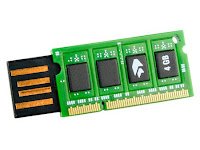 It is very common problem that, when we start to play game or start to see a high regulation movie suddenly pc create problem. If our PC don't have sufficient Ram speed then Its happen. At that time how can we increase my ram speed. It is very easy we can increase our pc's speed using USB pendrive or memory card.
Ii is very easy to make our pendrive As RAM........
Just flow the stapes bellow
1. 1st need a pendrive or memory card more then 256MB.
2. To make My Pendrive as RAM we need a softwer ebooster. Click here for download this soft
3. Now connect your pendrive.
4. Now install the soft.
5. After installing the soft run it.
6. In the program window, go to Edit > Add new cache device

 8. Click on Autoconfiguration button.


 It is very common problem that, when we start to play game or start to see a high regulation movie suddenly pc create problem. If our PC don't have sufficient Ram speed then Its happen. At that time how can we increase my ram speed. It is very easy we can increase our pc's speed using USB pendrive or memory card.
Ii is very easy to make our pendrive As RAM........
Just flow the stapes bellow
1. 1st need a pendrive or memory card more then 256MB.
2. To make My Pendrive as RAM we need a softwer ebooster. Click here for download this soft
3. Now connect your pendrive.
4. Now install the soft.
5. After installing the soft run it.
6. In the program window, go to Edit > Add new cache device

Now click on selects option
7. You’ll see your USB disk at the left screen.


9. Now press next..>
10.Now wait for a while
11. Now press Next

Click Next
12. NOw Select both Ram and Pendrive Drive

13. Now Next And Finish.

14. Now enjoy the speed >>>>>>>>>>>>>>>>>>>
Not:
1. Pendrive must be above 256MB
2. It will be support on all windows
How to Fix Blue Screen of DeathHow to Fix Blue Screen of Death:

BSODs appear when Windows encounters a serious problem and stalls the operating system. You can easily fix BSOD issues by examining all the factors that has triggered it. Here are some things you should do when you encounter a BSOD:


Now Do your work>>>>>>>

BSODs appear when Windows encounters a serious problem and stalls the operating system. You can easily fix BSOD issues by examining all the factors that has triggered it. Here are some things you should do when you encounter a BSOD:


Now Do your work>>>>>>>
How to Change The Icon of Your USB Pendrive or Removable Disc
Many people asked me that, how can they change the icon of their USB or any other removable drive/device. It means that when you enter your USB or any other removable drive/device it will shows show your desired icon or a thumbnail beside the device. It is very easy and simple many people does not know the way how to change. Today i will teach you how to change the icon with out using any software. Simply using Notepad
See bellow >>>>
How to change icon of your removable disk :
1. At 1st see the default icon of my pendrive
 default icon
 default icon
2.
Now from menu bar go to
Folder Options ( tools>folder option).

3.Now Find out the option “Hide extension for known file types“. If it is checked, then uncheck it.
 4. Now click Apply and Ok.
5. Now go to your USB device and make a new text file here. To make it right click on your mouse. From right click menu, go to New > New Text document.

6. Now you have to rename your text document from “New text document.txt” to“autorun.inf”.


7. Now right click on autorun.inf file and select edit. Then it will open with notepad. Type the code And SAVE
 9. Now take a icon file (.ico). And rename this file into autorun.ico. Now put this icon file in that pendrive


10. Now plug out your pendrive and again enter your drive you can see your own icon

DONE
NOTE:
1. You have to use icon file. Not image.
2. You can use any icon you want.
3. If you have any image, then convert that image into ico file with icon creator software.
4. You are commended to use 256*256 ratio icon.
5. Your icon name and icon name in autorun.inf shoul be same. For example, if your icon name is Shahed.ico then the code should be like this

See bellow >>>>
How to change icon of your removable disk :
1. At 1st see the default icon of my pendrive

default icon

default icon
2.
Now from menu bar go to
Folder Options ( tools>folder option).

3.Now Find out the option “Hide extension for known file types“. If it is checked, then uncheck it.

4. Now click Apply and Ok.
5. Now go to your USB device and make a new text file here. To make it right click on your mouse. From right click menu, go to New > New Text document.

6. Now you have to rename your text document from “New text document.txt” to“autorun.inf”.


7. Now right click on autorun.inf file and select edit. Then it will open with notepad. Type the code And SAVE

9. Now take a icon file (.ico). And rename this file into autorun.ico. Now put this icon file in that pendrive
10. Now plug out your pendrive and again enter your drive you can see your own icon

DONE
NOTE:
1. You have to use icon file. Not image.
2. You can use any icon you want.
3. If you have any image, then convert that image into ico file with icon creator software.
4. You are commended to use 256*256 ratio icon.
5. Your icon name and icon name in autorun.inf shoul be same. For example, if your icon name is Shahed.ico then the code should be like this
Friday, May 4, 2012
How To: Recover a lost Windows password
Applies to: Microsoft Windows NT, Windows 2000, Windows XP
Recover lost user password
If you have lost and forgotten the password of a user of the Windows computer, but can still log in to the system under another user, there are several ways you can regain access to the account.
- Use Windows Password Cracker. This is a tool that reads the hashed (encrypted) copies of the passwords from the system, and then uses dictionary and/or brute force methods to find the password that matches the hash. The stronger the password (the longer it is, whether it uses random letters and numbers or words and names) the longer this will take.
- Use Recover My Password
- Use Spotmau BootSuite or Spotmau Password Recovery

Recover lost administrator password
If you have lost the administrator password and are unable to log in to the computer at all then you must reset the password to something known. This is achieved by booting the computer from another disc and using a tool that rewrites the part of the registry where the password hash is stored. Only the last two of the tools mentioned above allow the creatuin of a password recovery disc.
This tutorial illustrates how you can reset the Windows administrator password using Spotmau BootSuite or Spotmau Windows Password Finder.
Using Spotmau BootSuite
We recommend that you use Spotmau BootSuite. This tool is easy to use, with a graphical interface. It also has many other uses, so it is not something that you may only need to use once.
Spotmau Password Recovery is the password recovery component of Spotmau BootSuite sold on its own.
 Get Spotmau BootSuite now
and recover your lost password!
Resetting the password
Insert the Spotmau BootSuite CD and start the computer. The main menu will appear.

Click 5. Password Recovery.

On the Password Recovery menu click Windows Admin/User Password.

An informational message appears. Note that changing or resetting the password will make any encrypted files unreadable, because the files are encrypted using the original password. There is no way round this. If you have encrypted files, you have to remember the original password. Assuming that you don't have any encrypted files, click Next.

On the Windows Admin/User dialog, select the location of your Windows installation. Usually there will only be one choice. In the screenshot above, Windows XP and Windows Vista were installed in separate partitions. Click Next.

Now select what you want to do. You can either set the password to blank, or change it to something new. In our example, we will set it to blank. You can re-set it to something new once you are back inside Windows. Click Blank Admin/User password.

Enter the name of the user whose password you want to reset. The default name is Administrator. Click Next.

Confirm the action you have selected by clicking Yes.

A message is displayed to tell you that the password has been reset. Remove the Spotmau BootSuite CD from the drive and click OK to restart the computer and log in to Windows.
How To: Reset the Windows administrator or user password
Applies to: Microsoft Windows 7, Windows Vista, Windows XP, Windows 2000 and Windows Server editions
If you have forgotten the Administrator password for Windows or you cannot remember any other password that will get you in to Windows then you will need to reset the password to regain access to the computer.
This tutorial illustrates how this can easily be achieved using the Recover My Password software.
Getting started
Before you can start to reset the Windows password you must use a working computer with a CD burner to download the Recover My Password software and burn it to CD to create a boot disc.
If you are a home user running Windows 7, Windows Vista, Windows XP or Windows 2000 then you will only need the Home edition of Recover My Password. If you are a business user or need to reset the administrator password on a Windows server then you will need a different version: check the product review page for more information.
 Download Recover My Password now!
The software comes in a zip archive. You will need to open the zip file, drag and drop the iso file (CD image file) within it to a suitable location such as the desktop, and then use some CD image burning software to create a boot CD from the image. Most PCs that have a CD or DVD burner have suitable software already, but if you don't have anything suitable we recommend ImgBurn.
- See a tutorial showing how to make a Recover My Password boot disc using ImgBurn
You will also need to buy a license for the software, because you will be required to enter the license details before resetting the password.
Resetting the administrator password
To start the reset Windows password process, put the password recovery boot CD you created into the computer's CD drive and start (or restart) the computer. The boot disc start-up screen should appear.

Using the cursor up/down arrow keys you can select the drive containing the Windows installation with the password you want to reset and press Enter to start, or just wait and the system will start after 30 seconds.

The Lazesoft loading screen will appear, and stay on the screen while the operating system loads. This normally takes a minute or so.
The Recover My Password wizard
Eventually the Recover My Password Wizard will appear on the screen.

The Wizard is a commonly used type of user interface on Windows computers. You simply answer the questions or select the required options on each page and then click Next to go on to the next page. You can always click Back to check or change selections made on a previous page.
Click Next.

First you should select the Windows installation for which you want to reset the administrator password. Usually there is only a single installation anyway, which is selected by default. Click Next.

Next you select the user whose password you want to reset. Note that you can reset the password for any of the users on the system, not just the administrator. When you have done that click Next.

The final Wizard screen will display the details of the user you selected. If this is the correct one, click the RESET/UNLOCK button.
Entering the license key
At this point you will be asked to enter the name and serial number of the license you purchased, because this is not stored on the CD.

Now the password of the user has been set to blank. Click Finish, then when the Wizard closes remove the CD and restart your computer.
Subscribe to:
Posts (Atom)